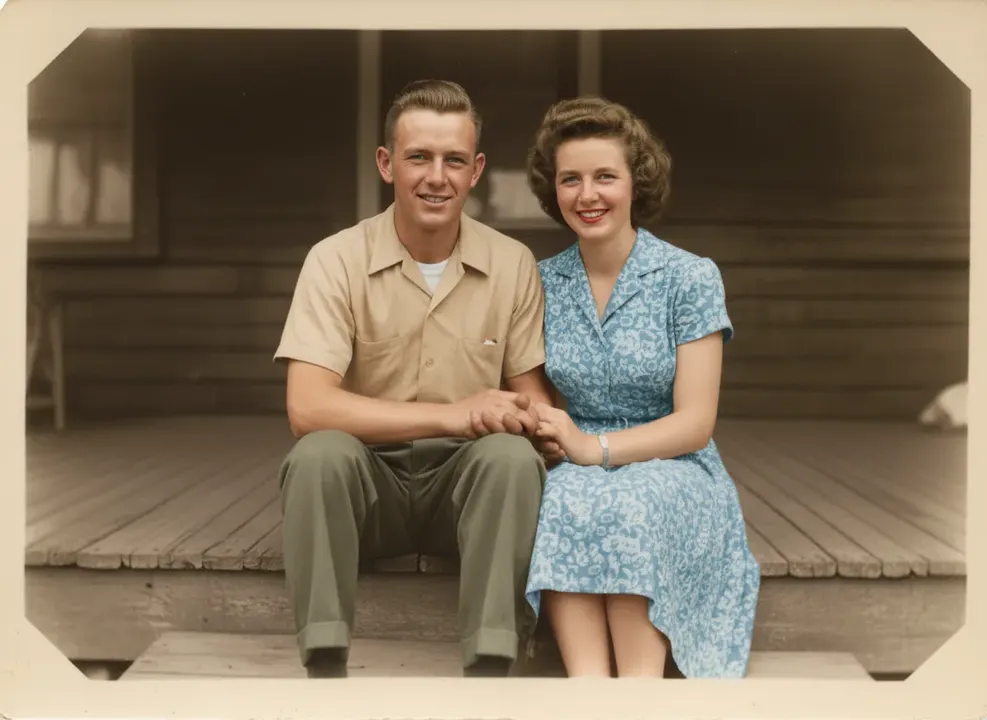
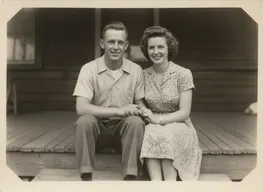
Most photoshoot tools on this site start from a reference photo and keep the face, age and identity they find in it. That works well with a recent color selfie. It works less well with the only good picture of a grandparent, which is a black and white print from decades ago: the model can read the face, but it cannot know whether the hair was auburn or brown, or what color the eyes were, so each look guesses. Colorizing the photo first turns it into a reference that carries those answers. The same tool also works the other way round, when a black and white frame from your own shoot deserves a color version.
Two jobs this page does
A color reference for a new shoot. You have an old black and white portrait and want to place that person in a family photoshoot, a painted portrait from the AI portrait generator, or, for an old photo of a pet, the pet portraits tool. Colorize it here, then upload the color version as the reference.
Color for a black and white look. Several looks on this site are black and white on purpose: the Black and white look in the AI portrait generator, the black and white fine art concept in the AI generated photoshoot, the high-contrast black and white grade in the AI photoshoot generator and the Horror film look in the Halloween photoshoot. If one of those frames has the pose you want but you need it in color for a card or a profile, colorize it instead of starting over.
How to colorize a reference photo
- If the print is damaged, repair it first in the photo restorer. The colorizer keeps every detail, scratches included.
- Upload the black and white photo. This tool takes one photo per run.
- Fill in the color hints you are sure of, and leave out the ones you are not.
- On Nano Banana, set the Aspect ratio to the closest shape of the photo (it starts at 1:1 on this page). FLUX Kontext has no aspect ratio setting.
- Generate, then compare the result with the original at full size: faces, hands and edges should not have moved.
- Download the color version and upload it as a reference on the photoshoot page you are planning.
What to put in the hints
The hints field adds one sentence to a fixed instruction that asks for natural, realistic, period-accurate color and tells the model to keep all details, faces and composition the same. It is the only place where your knowledge enters, so spend it on the things a shoot model will copy into every look:
- Hair: "her hair was light auburn", "his hair was dark brown, almost black"
- Eyes: "blue-grey eyes"
- Skin: "fair skin with freckles", "olive skin"
- One garment, if it matters: "the dress was navy blue"
Ask whoever remembers. Family members often know the color of a coat or a car better than a face, and the face colors are what matter for a reference. If nobody knows, leave the field empty and let the model infer a natural result.
Choosing a model
Nano Banana is the default. Nano Banana 2 and Nano Banana Pro are the higher tiers in the same family, GPT Image 2 follows long instructions closely, and FLUX.1 Kontext [pro] is built for edits that leave everything else untouched. Colorizing is a judgment call, so the useful test is to run the same photo on two models and keep the one whose skin tones look natural to someone who knew the person. Each model shows its price on the Generate button.
Using the colorized photo in a shoot
- Family photoshoot: upload the colorized portrait as one of the photos, one clear photo per person, up to four. A small family keeps likeness best.
- Portrait generator: looks such as Oil painting, Watercolor and Renaissance turn one face into a painted portrait, a common choice for a memorial or an anniversary gift.
- Pet portraits: an old photo of a late pet colorized first gives the Royal or Watercolor look the right coat color and markings.
Check the face in every look of the shoot against the original photo. If a look drifts, regenerate that look or bring the face back with the face swap.
Going the other way
If you want a modern photo to look old instead, that is a style, not a colorization. The vintage film and film noir styles add grain, faded color or high-contrast black and white to a new image.