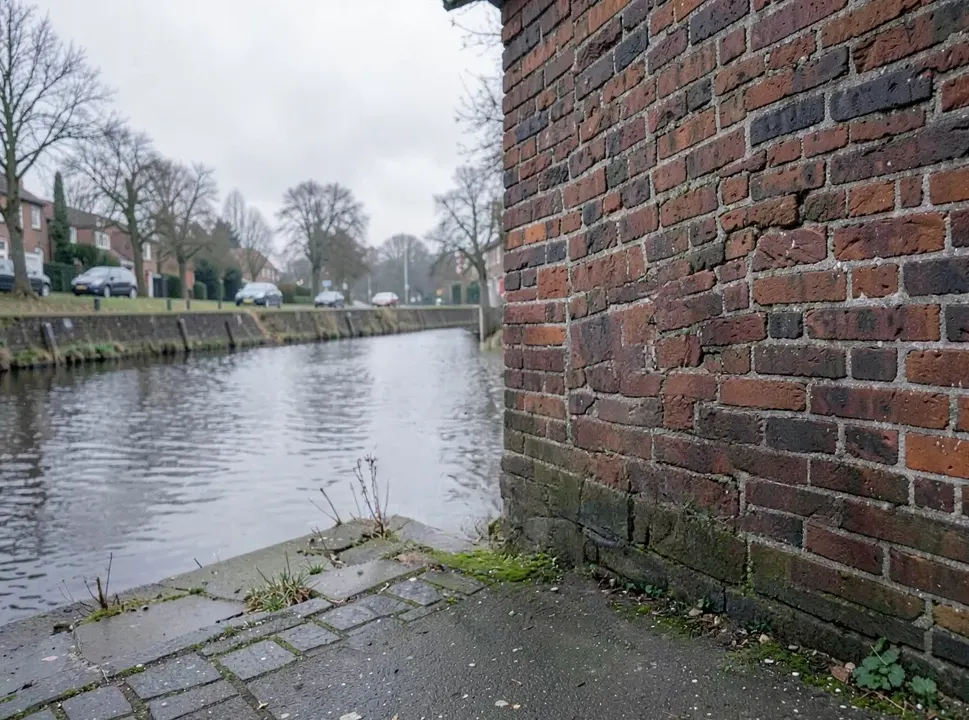
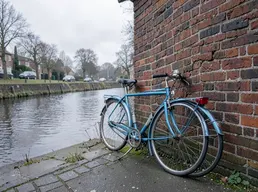
A Full shoot gives you six frames from the same photos, and it is normal for one of them to be nearly right. The light works, the expression is yours, and then there is a stranger in a red coat behind your shoulder on the city street, or a second coffee cup on the cafe table that nobody ordered. Regenerating the look draws a whole new picture and may lose what you liked. This page does the smaller job: you name the one thing that should not be there, and the model takes it out and fills the space so it matches the rest of the scene.
What tends to need removing
Some looks invite clutter because the places they describe are crowded in real life. A few examples from the photoshoot tools on this site:
- Background people. The City walk and Rainy night looks in the couple photoshoot, the Market look in the Christmas photoshoot and Tokyo night in the AI generated photoshoot all take place on streets where a model may add passers-by.
- Invented signs and lettering. Market stalls, shop fronts and city backdrops often get signs with text that reads as nonsense up close. If a sign is distracting, removing it is quicker than fixing its spelling.
- Extra props. A second glass, a stray balloon string at a birthday look, a phone on the table in a dating profile photo you did not want.
- Edge clutter. Lamp posts growing out of a head, a car bumper cut off at the frame edge, a stray branch across the sky.
If the problem is the face, a hand or the whole background, see the last section: those are different fixes.
How to clean up a result
- On the result card of your shoot, press Download to save the frame you want to fix.
- Upload it here. This tool takes one photo per run.
- In "What to remove", describe the object and where it is.
- Keep FLUX Kontext as the model for the first try, then press Generate.
- Open the result next to the original and check the filled area, the face and the edges of the subject.
- If a trace is left, run the result through again with a more exact description, or switch to Nano Banana Pro.
Writing the "What to remove" field
Your words fill one slot in a fixed instruction: remove the thing you named, fill the area so it matches the surroundings, and change nothing else. So the field only needs to say what and where. Position and one detail beat a category:
- "the man in the grey jacket behind her left shoulder", not "the person"
- "the red sign above the cafe door", not "the text"
- "the second coffee cup on the right side of the table"
- "the lamp post directly behind his head"
Name one object per run. When two strangers are standing together, you can name them together ("the two people walking on the far right"), because the model fills one area.
Picking a model
FLUX.1 Kontext [pro] is the default because it is made for targeted local edits: one change, the rest of the photo left alone. It takes exactly one photo and has no aspect ratio setting.
Nano Banana, Nano Banana Pro, GPT Image 2 and Qwen Image 3 are in the same menu. They show an Aspect ratio picker, and on this page it starts at 1:1, so match it to the look you are fixing before you press Generate. Most people looks on this site are 3:4; the family and Christmas photoshoots are 4:3; the LinkedIn headshot, product and flat lay tools are 1:1; and the AI selfie is 9:16. A mismatched ratio makes the model reframe your photo, which is the opposite of a quiet cleanup.
Each model's price is in the box beside this text and on the Generate button.
When removal is the wrong fix
- The face drifted. Removing something will not bring your likeness back. Put your own face into the frame with the face swap instead.
- You want to change an object, not delete it. A different jacket color or a cake with fewer candles is an edit; describe it in the AI photo editor.
- The whole background is wrong. Swap the setting with the AI background changer, which also relights the subject to match.
- The look missed completely. Run that one look again from its photoshoot page. A failed generation is refunded; a finished frame you do not like is not.
After the cleanup
Once the frame is clean, it is ready for the next finishing step. For a print or a card, run it through the image upscaler last, since every edit after it draws a new image. For a cutout on a plain or transparent background, the background remover works best on a frame with nothing stray left at the edges of the subject.