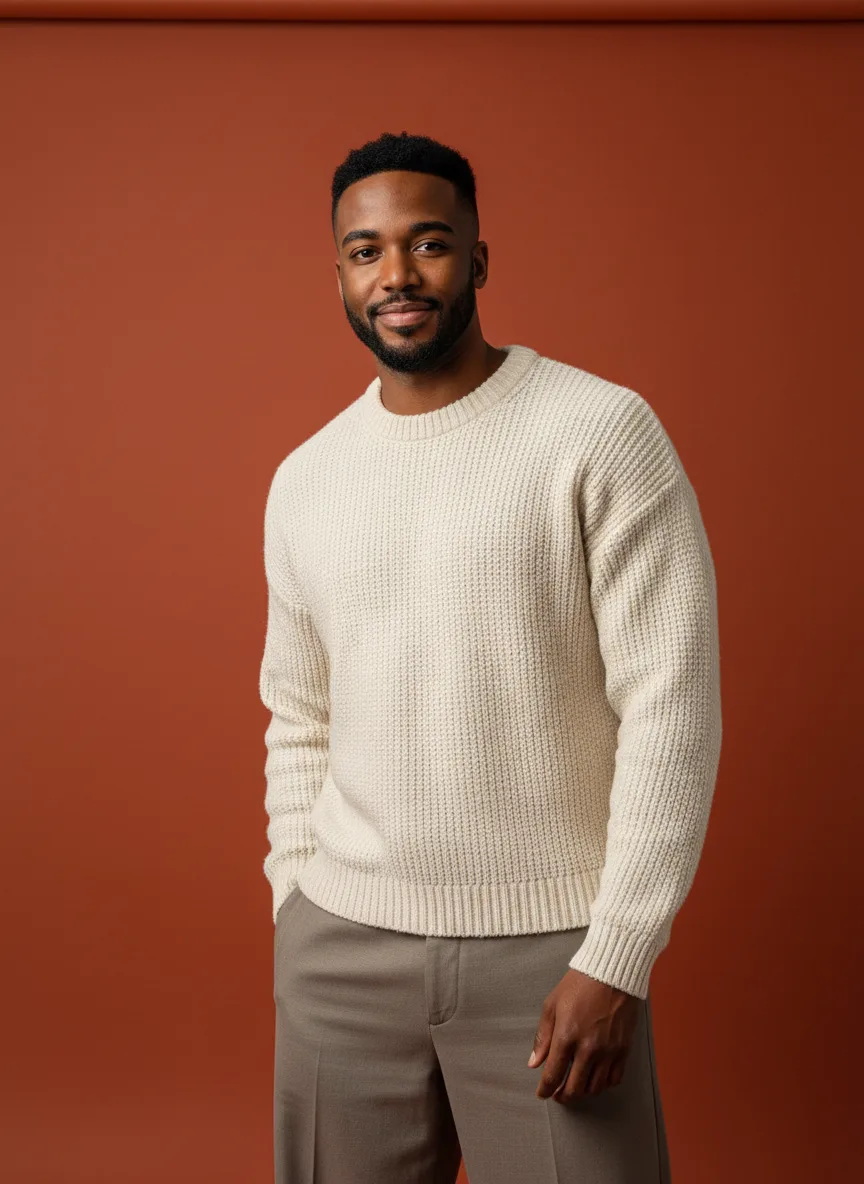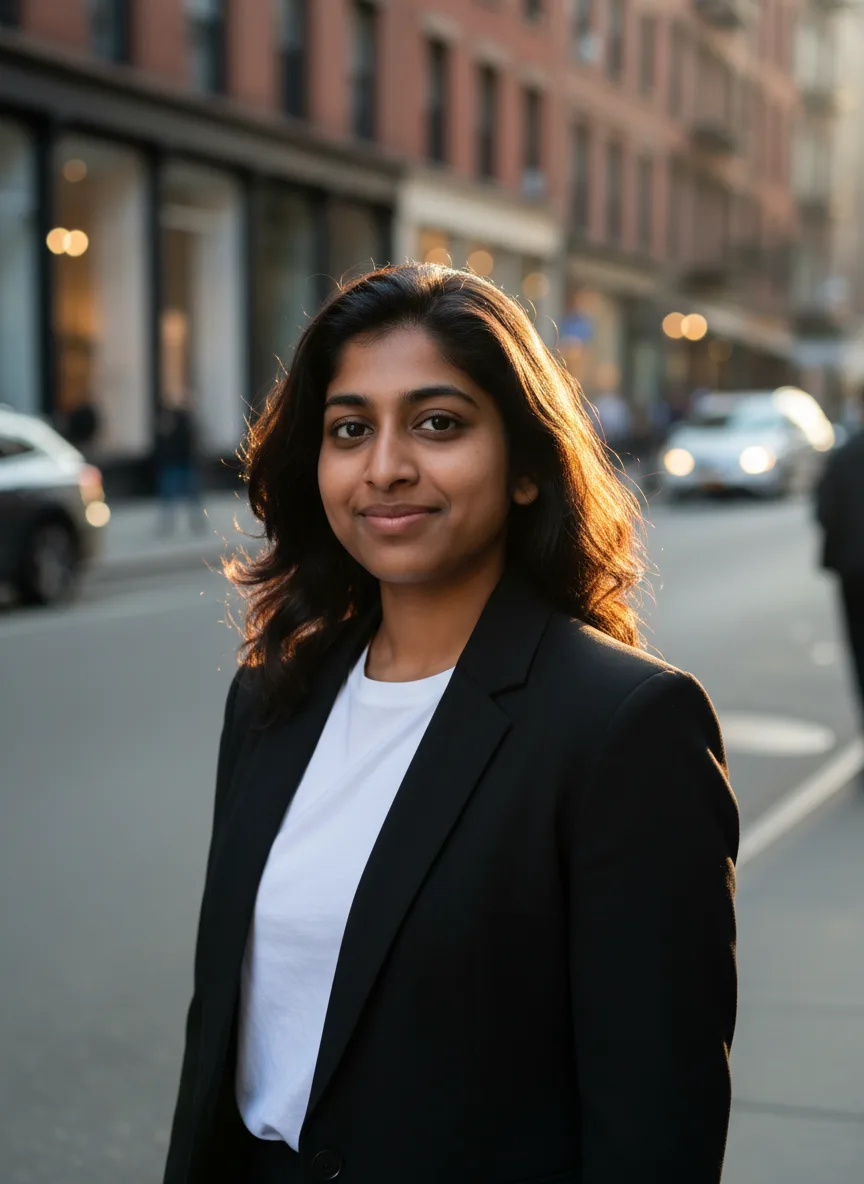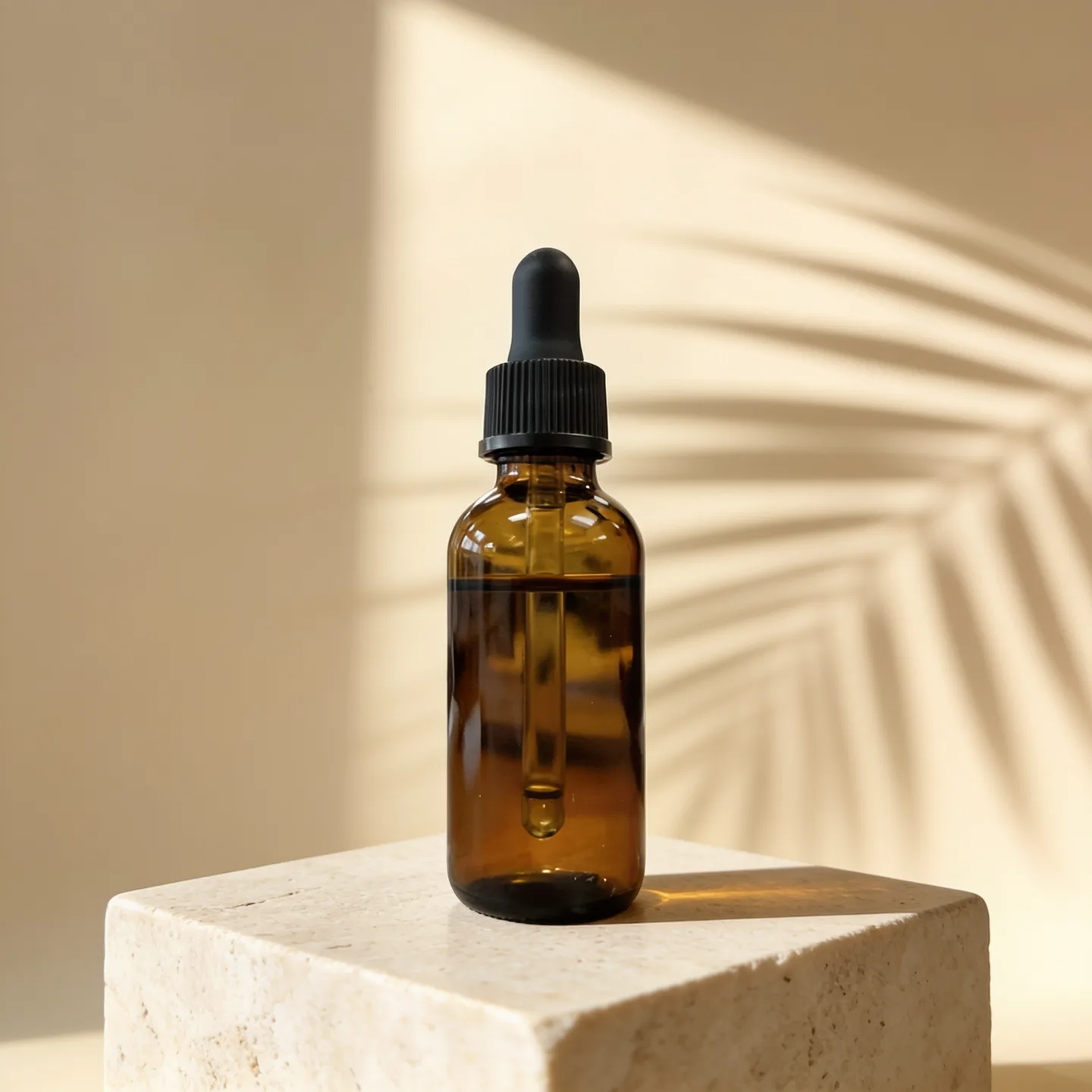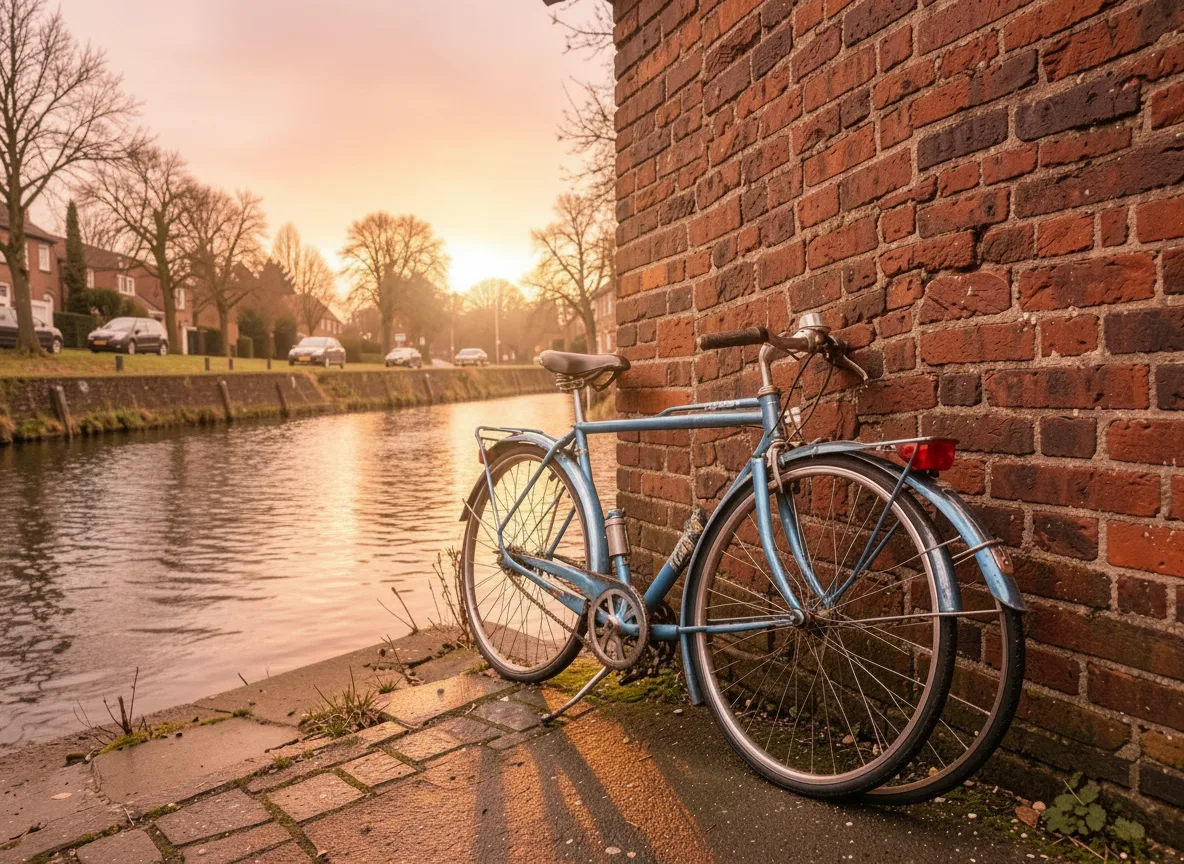
For editing photos of people, start with Nano Banana: it is the default on our AI Photo Editor and on most photoshoot and headshot tools because it keeps faces consistent. For edits driven by long, precise instructions or text inside the image, such as a product label, try GPT Image 2, which sits in the same model menus. The rest of this post compares the two families using what our model registry records about each, with credit prices shown from the registry in the cards below. It does not rank output quality, because the reliable test is your own photo and your own instruction.
The two families at a glance
| Model | Reference photos | Images per run | Aspect ratios |
|---|---|---|---|
| Nano Banana | Up to 3 | 1 | 1:1, 4:3, 3:4, 16:9, 9:16 |
| Nano Banana 2 | Up to 6 | 1 | 1:1, 4:3, 3:4, 16:9, 9:16 |
| Nano Banana Pro | Up to 6 | 1 | 1:1, 4:3, 3:4, 16:9, 9:16 |
| GPT Image 2 | Up to 6 | Up to 4 | 1:1, 4:3, 3:4, 16:9, 9:16 |
| GPT Image 1 Mini | Up to 6 | Up to 4 | 1:1, 3:2, 2:3 |
All five can generate from text alone or edit from one or more uploaded photos, and all draw from the same credit balance.
Nano Banana: edits that keep a face
Nano Banana is Google's Gemini 2.5 Flash Image. Its registry description is "fast, keeps faces consistent, edits photos from plain words", and that is why it is the first choice on most tools that start from a photo of a person, from headshots to themed photoshoots. The sample at the top of this page is a Nano Banana edit from the AI Photo Editor: "Make it a clear golden hour evening with warm low sunlight, long shadows and a soft orange sky. Change nothing else."
Two newer tiers sit above it in the same menu:
- Nano Banana 2 (Gemini 3.1 Flash Image): sharper detail and up to six reference images.
- Nano Banana Pro (Gemini 3 Pro Image): described for text rendering, scene reasoning and multi-image composites. It is the most expensive of the three.
GPT Image: long instructions and text
GPT Image 2 is OpenAI's image model, described in our registry as "precise instruction following and clean in-image text". It suits edits where the instruction is long or where text in the image has to survive, such as packaging in a product shot. It is also one of the two models in this comparison that return up to four images per run, which is useful when you want to pick from several versions of one edit.
GPT Image 1 Mini is the budget OpenAI option, described for quick drafts and simple edits. It also returns up to four images per run. Note its narrower set of aspect ratios.
Where each one runs here
- Nano Banana: the default on the AI Photo Editor, AI Photoshoot, AI Headshot Generator, LinkedIn Headshot, AI Christmas Photoshoot, AI Yearbook Photos and most other people tools. A Full shoot runs every look on whichever model you pick, so the default carries over to the whole set.
- Nano Banana 2, Nano Banana Pro and GPT Image 2: in the model menu of the photoshoot, headshot and product tools, for when you want more detail or a different read of the same prompt.
- The studio: lists every image model, including GPT Image 1 Mini.
Every one of these tools lets you switch models in the menu without changing your settings.
When neither is the right tool
If you want to change one object and leave every other pixel alone, FLUX.1 Kontext [pro] is an edit model described for exactly that: targeted local edits. It takes one photo and returns one image, and it is the default on the object remover.
How to write an edit instruction for either model
Both families respond to plain sentences. What helps:
- Say what changes, then what stays. "Change the jacket to red leather. Keep the face, hair and background the same."
- Add "Change nothing else" when you want a narrow edit. It is part of the instruction behind our sample.
- One edit per run. Several changes at once make it more likely something you wanted to keep also changes.
- Name concrete things. "Snowy winter evening, red scarf" gives the model something to draw; "make it nicer" does not.
How to compare them yourself
- Open the AI Photo Editor and upload one photo.
- Write one instruction and generate on Nano Banana.
- Switch the model to GPT Image 2 without changing anything else and generate again.
- Compare likeness first (does the person still look like themselves?), then how closely each followed the instruction.
The Generate button shows each model's price before you spend anything. If a model refuses a photo or a request, the credits are refunded, up to a daily limit, and why was my generation blocked explains the rules. Some models are stricter with photos of real people than others, so a refusal on one does not mean the other will refuse too.