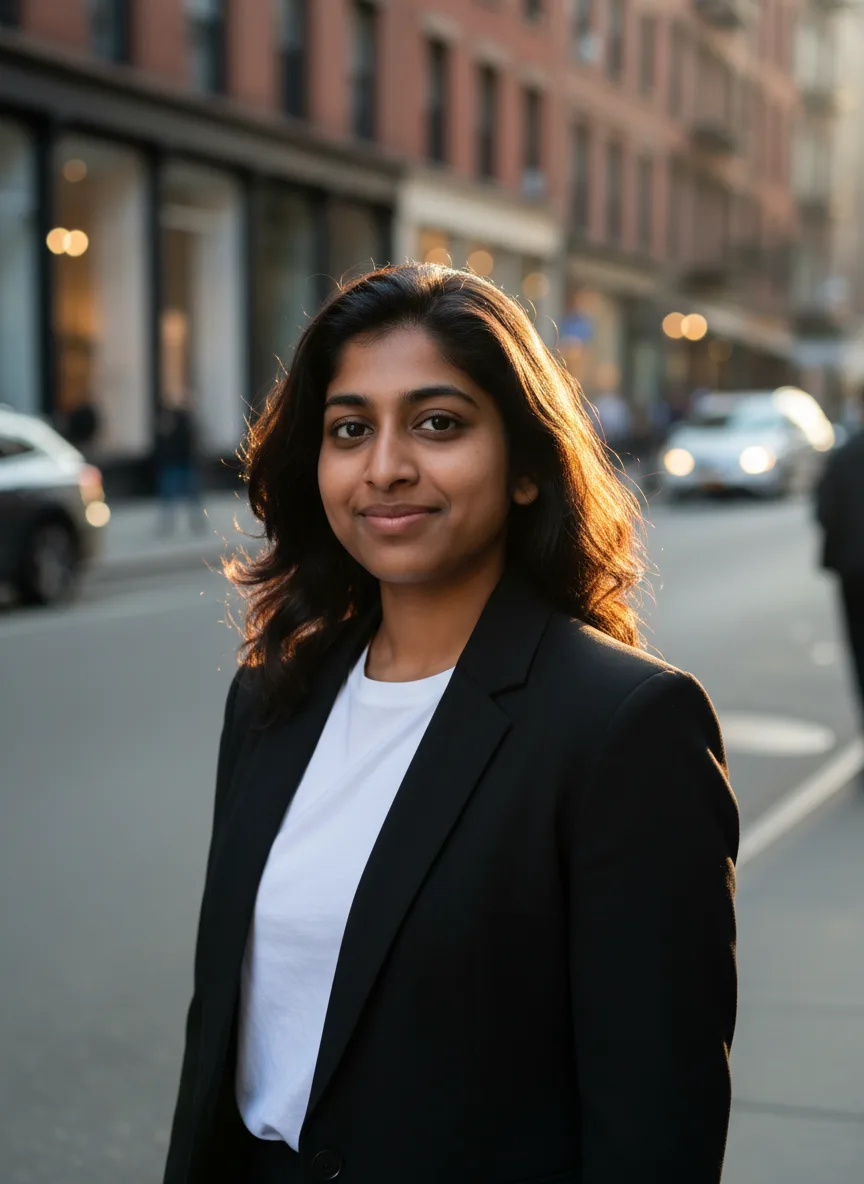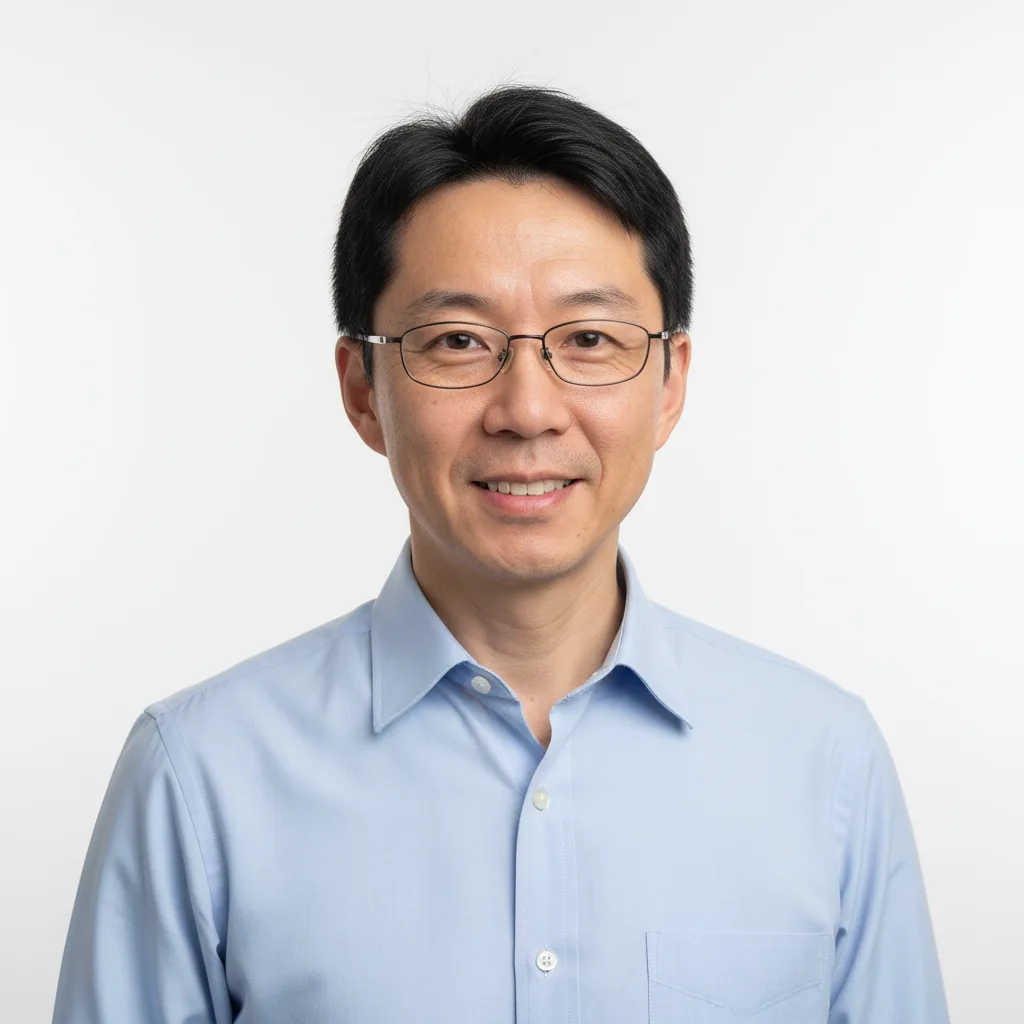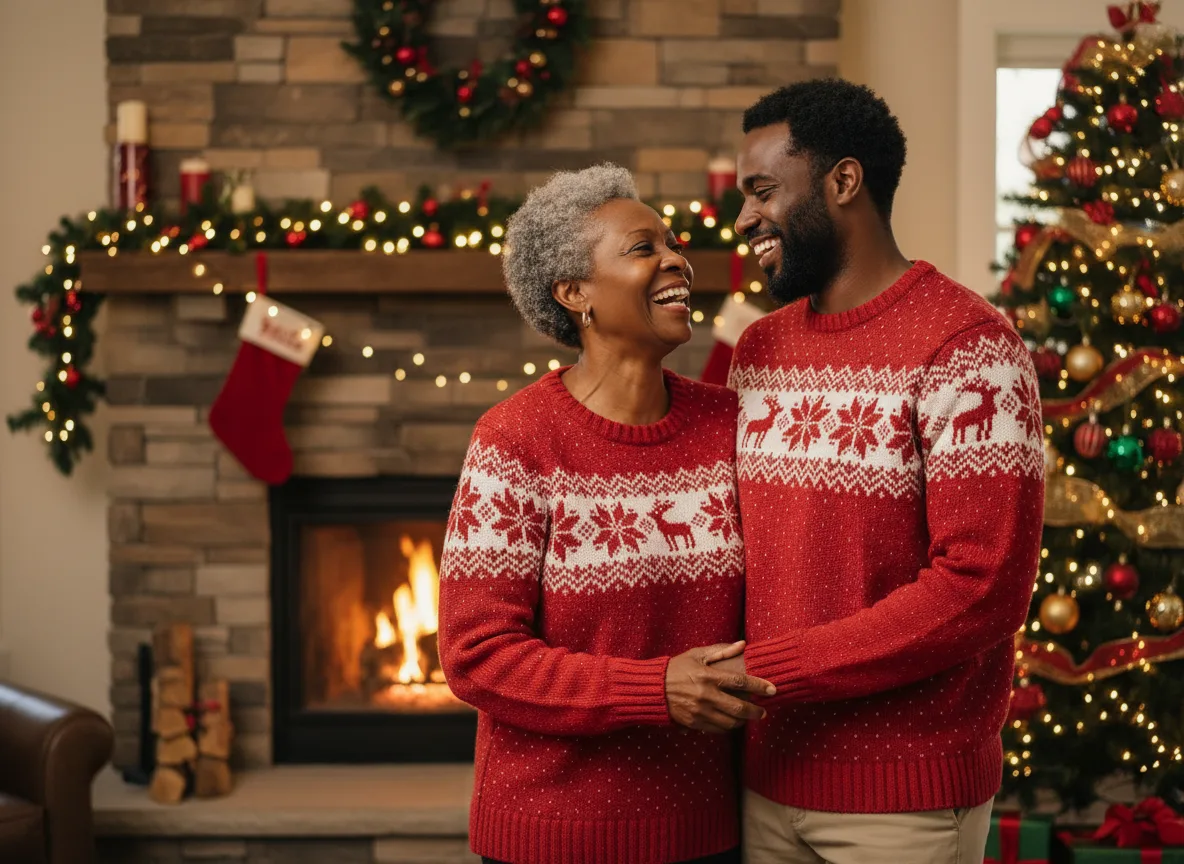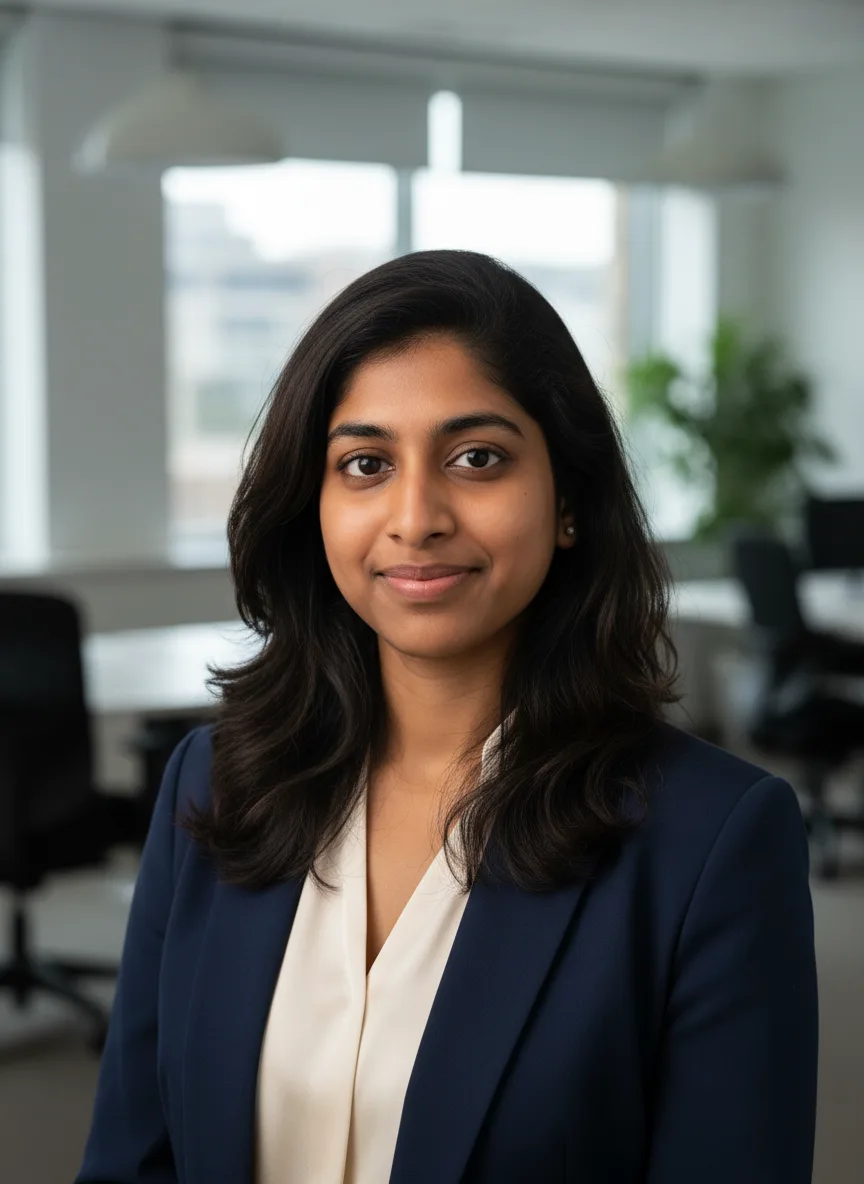
The best photo to upload is a sharp, front-facing shot in even daylight, with your whole face visible and filling a good part of the frame. No sunglasses, no heavy filter, no hand in front of your chin. A phone selfie taken near a window usually does the job. The rest of this guide explains why, and what changes for couple and family shoots and for products.
Why the photo matters more than the prompt
Tools like the AI Photoshoot and the AI Headshot Generator tell the model to keep your face and identity the same. The model can only keep what it can see. If half your face is in shadow, it invents the missing half. If the photo is blurry, it guesses at your eyes and skin. The prompt sets the scene; the photo sets the likeness.
Face clarity
- Face the camera, or turn slightly. Front-facing and three-quarter angles give the model both eyes and the shape of your face. Full profiles hide too much.
- Keep everything visible. Sunglasses, hats pulled low, masks and hair across the eyes all remove information the model needs.
- Fill the frame. A face that takes up a tiny corner of a wide shot has too few pixels to work from. Crop in before you upload.
- Skip filters. Beauty filters and heavy edits change your skin and features, and the model copies the filtered version.
- Look like you normally do. Wear your hair the way you usually do. The result will look like the person in the photo, so pick the version of you that you want to see.
Light
Even, soft light is the goal. Daylight from a window in front of you is the easiest source. Avoid:
- Strong light from one side, which puts half the face in shadow
- Light from behind you, which turns your face into a silhouette
- Colored light (neon, party lights), which the model may read as your skin tone
- Direct flash at close range, which flattens features
If your only photos have harsh light, try them anyway, then compare with a better-lit photo if the likeness is off.
How many photos to upload
One clear photo is enough for every photoshoot and headshot tool. They accept up to four, and two to four photos from slightly different angles give the model more to work with, which helps keep the likeness close.
The number the uploader allows also depends on the model you pick. Nano Banana, the default on most people tools, takes up to three reference photos.
Use photos of the same person only. Mixing two people in the references of a single-person tool gives the model two faces to blend.
Photos for couple and family shoots
The couple, engagement, wedding, family and Christmas photoshoots work with two or more people. For each of them:
- Upload one clear photo of each person rather than a small group shot, so each face is large. One sharp photo of the two of you together also works well for couples, because it keeps your relative heights.
- Match the photos where you can: similar light, similar angle and similar framing blend best.
- Keep the group small. The more people in one image, the more likely one face drifts.
- Every adult pictured needs to agree. Photos of anyone under 18 may be uploaded only by a parent or legal guardian. The full rules are in what you can create.
Photos of products and objects
For product shots, the same rules apply with a product in place of a face: shoot it straight on, in daylight, against a plain wall. Labels and logos need to be sharp in the reference if you want them to survive, and it is always worth checking text in the result before you publish it.
File types and size limits
Photos can be PNG, JPEG or WebP. These are the largest files you can upload:
| File | Largest upload |
|---|---|
| Photos and images | 12 MB |
One tool has a tighter limit. The image upscaler takes images up to 1024 x 1024 pixels (about 1 megapixel) and doubles them, so larger images are turned away before any credits are spent. Upscale small images and AI generations; larger photos are already big enough for most uses.
Tip
Phone portrait mode blurs the background and sometimes the edges of your hair and ears. If a result has odd edges, try a regular photo instead.
What happens to your uploads
You need to be signed in to upload. Uploads are stored privately in your account and sent only to the model that runs your job. Results appear in the public gallery only if you choose to share them. The uploading photos page in the help center covers this in more detail.
A quick checklist
Before you press Generate:
- Is the face sharp, lit from the front and at least a good part of the frame?
- Is anything covering the eyes, mouth or jaw?
- Are all photos of the same person (or one of each person for couple and family shoots)?
- Do you have permission from everyone in the photo?
If a result still does not look like you, the fix is usually a better photo, not a longer prompt. Check the likeness on a single image before you run a Full shoot on every look. Failed generations are refunded automatically, so trying another photo costs only the new run.